The Camera settings in FC 27 let you control how matches are displayed, how much of the pitch you can see, and how close the camera feels during gameplay. Choose a base camera that matches your playstyle, then fine-tune options such as height, zoom, tracking speed, and Power Shot Zoom for the best match view.
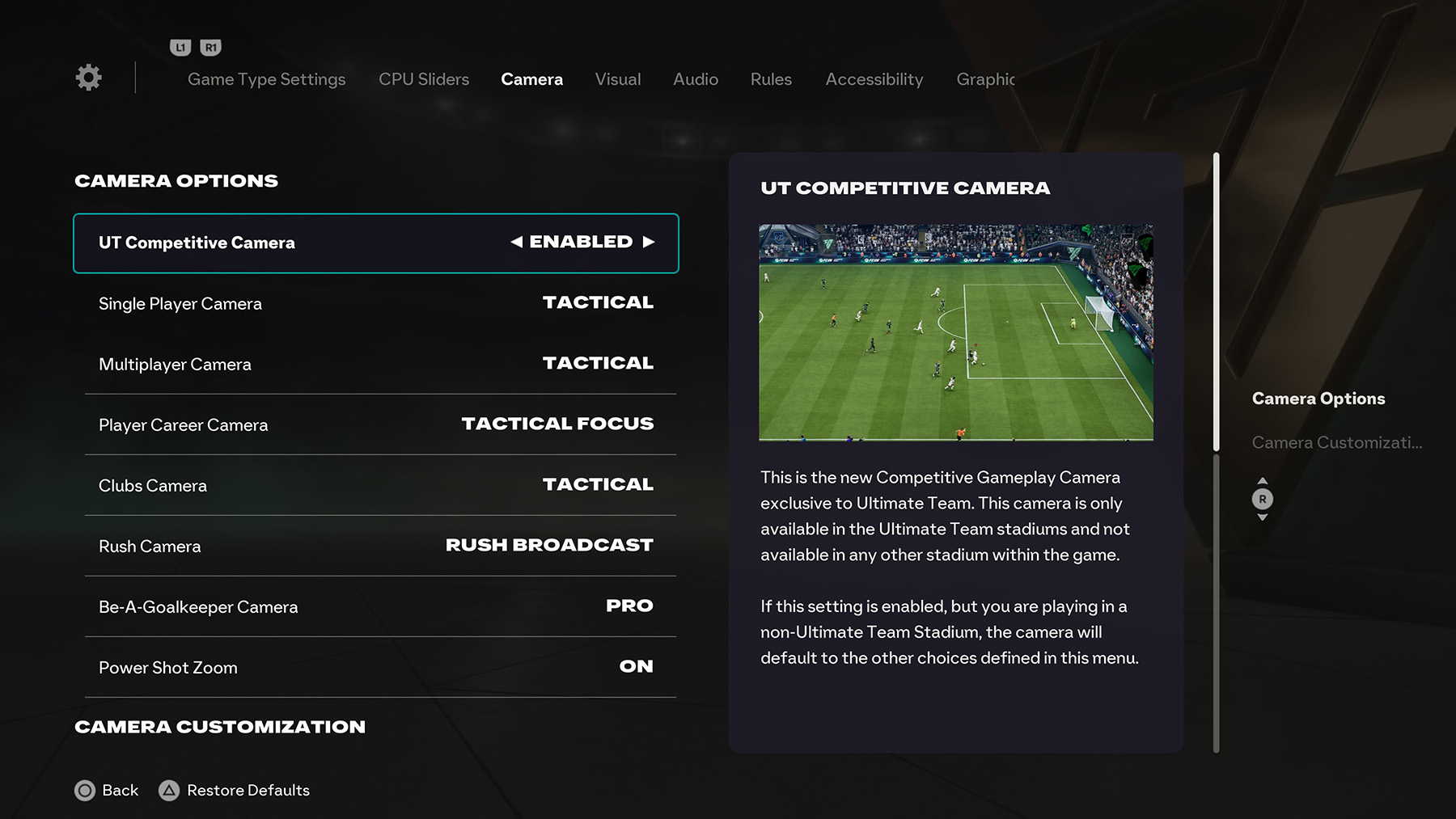
Where to Change Camera Settings
Camera settings in FC 27 can be adjusted from the main settings menu or directly before and during matches, depending on the game mode you are playing.
- Ultimate Team: Adjust the camera from Game Settings. Some online matches may use a competitive camera setting for consistency.
- Main Menu: Go to Settings → Game Settings → Camera to set your default camera view.
- Kick Off: Change your camera from the pre-match settings screen before starting a match.
- Career Mode: Camera settings can be changed before matches or from the pause menu during gameplay.
- Clubs: Camera options are available from the match lobby or pause menu.
- Rush Mode: Rush has its own camera options designed for small-sided gameplay.
- In-Game Pause Menu: Pause any match, then go to Game Settings → Camera.
Camera Types
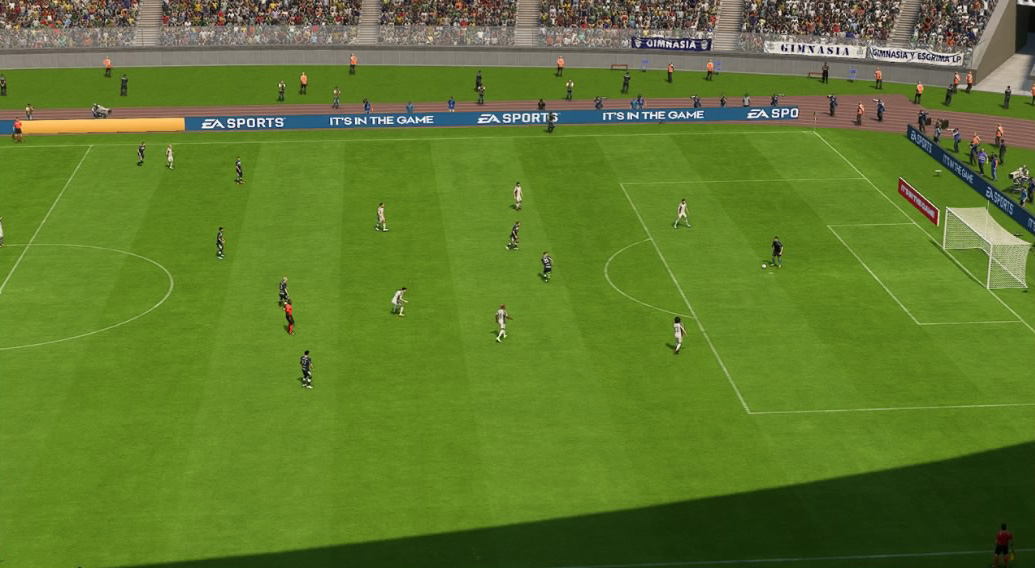
TACTICAL
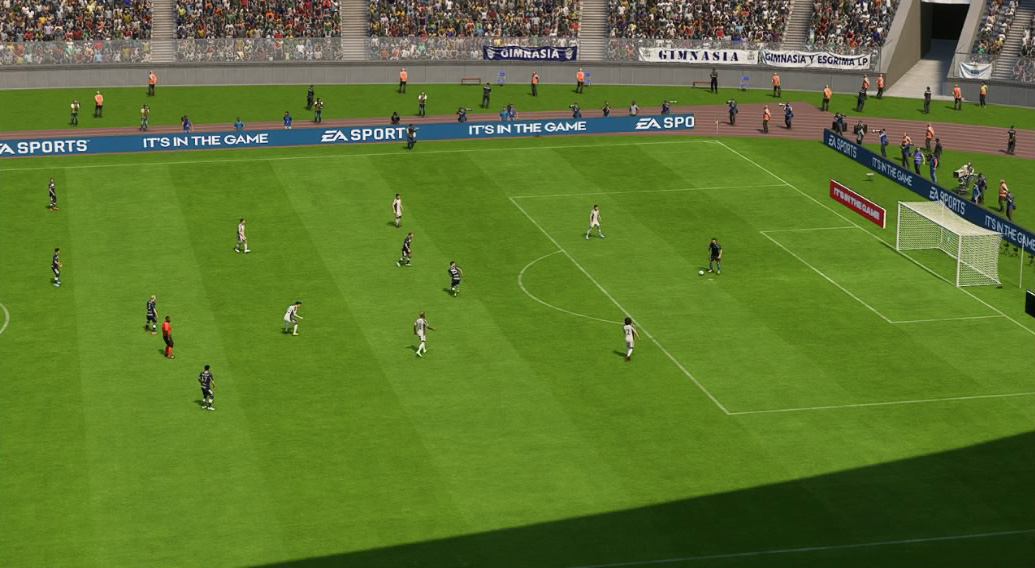
EA SPORTS GAMECAM
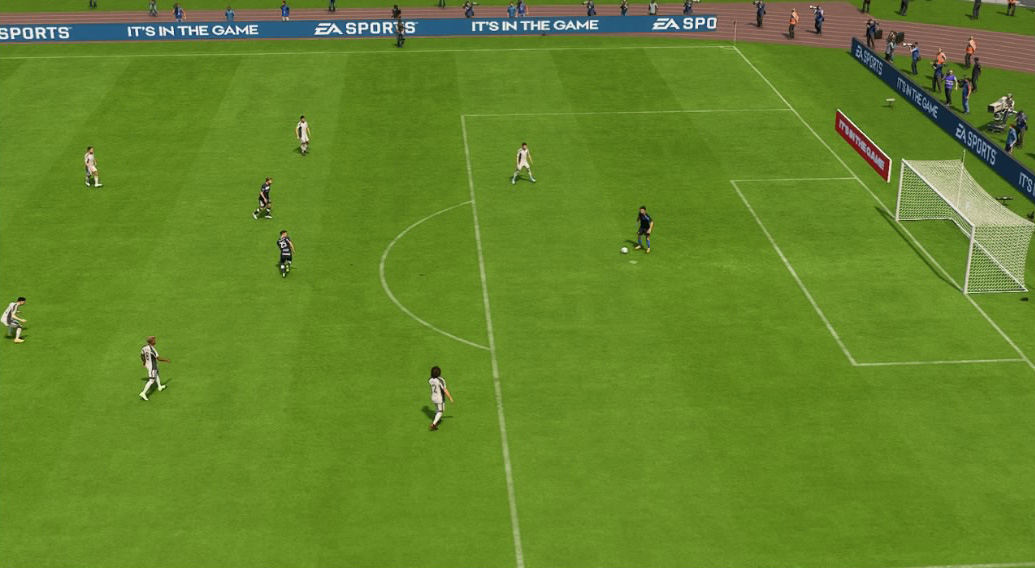
TELE BROADCAST
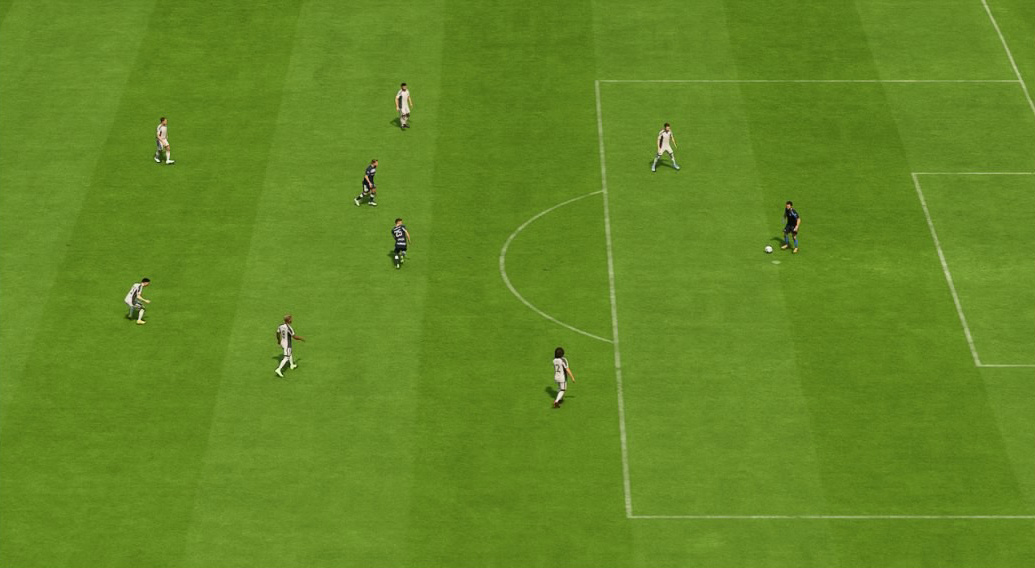
TELE
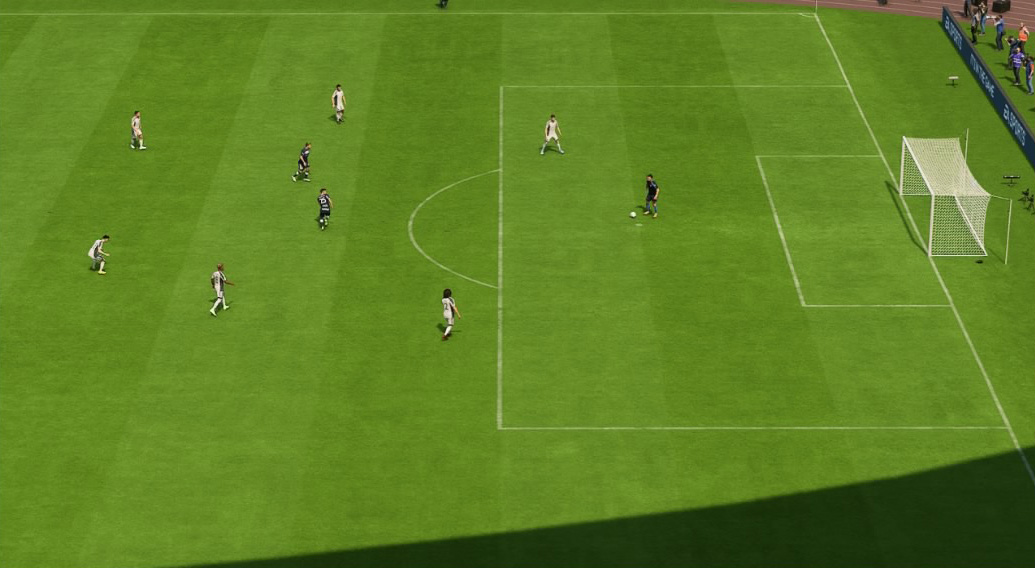
CO-OP
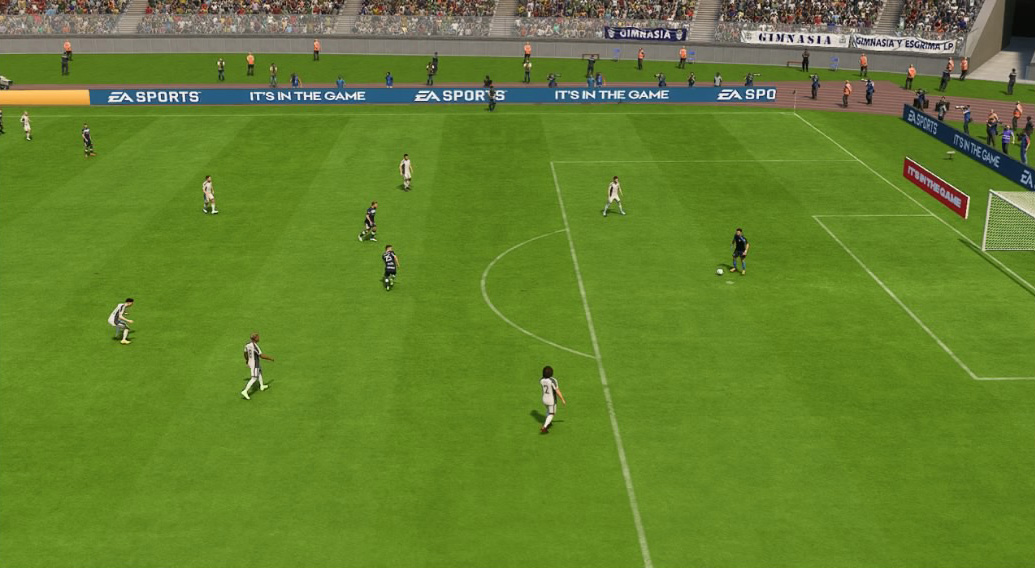
CLASSIC
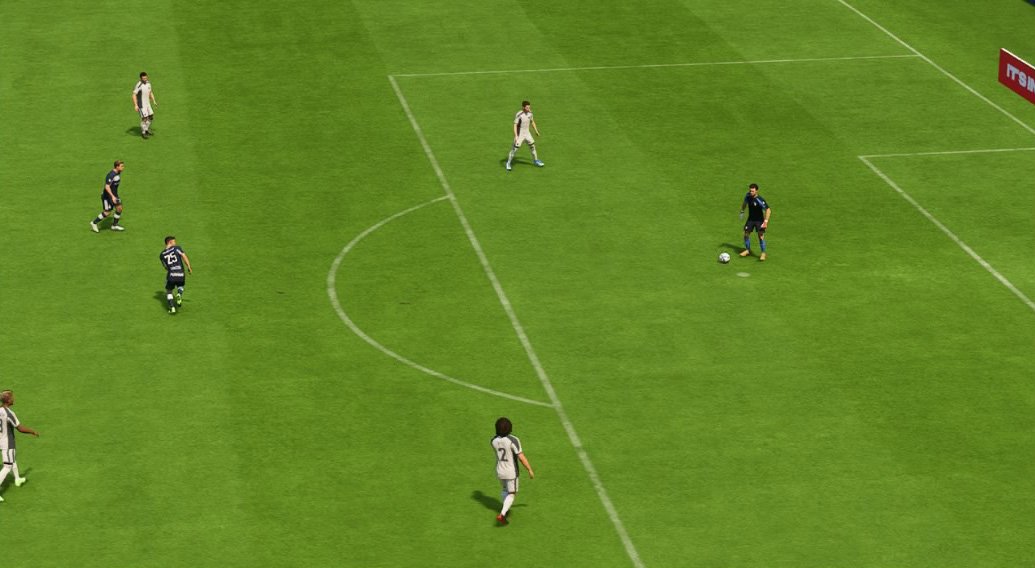
DYNAMIC
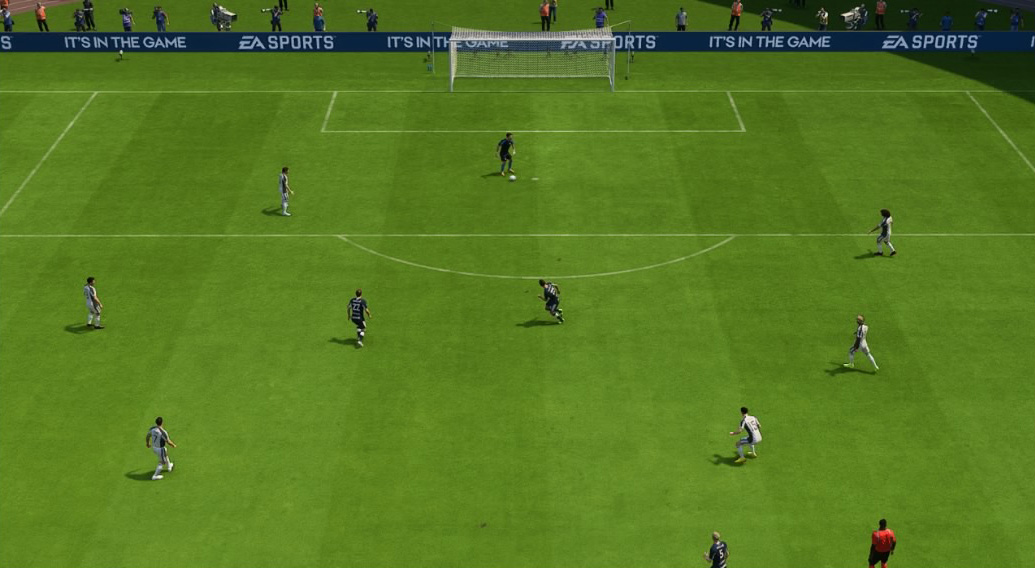
END TO END
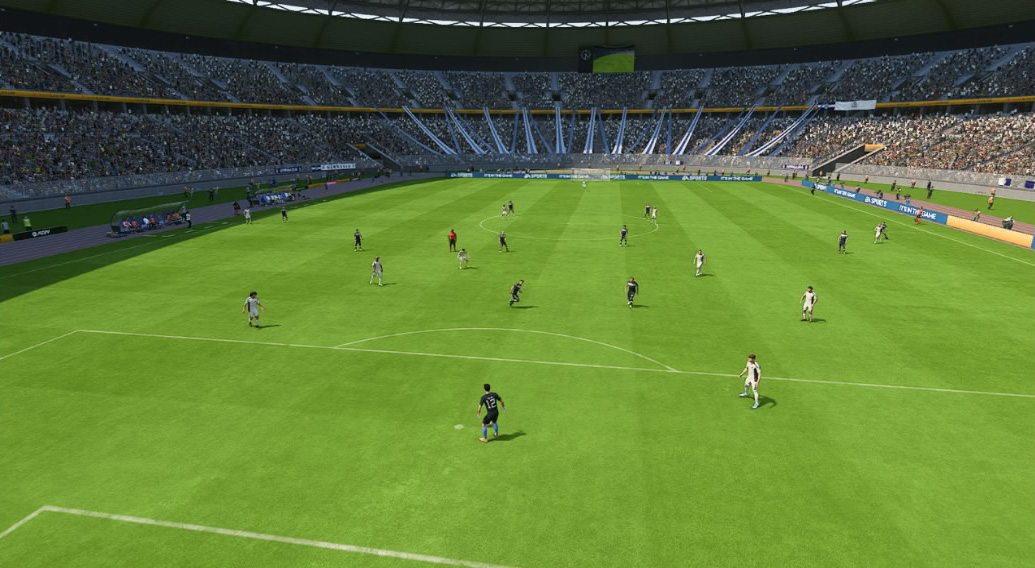
PRO
BROADCAST
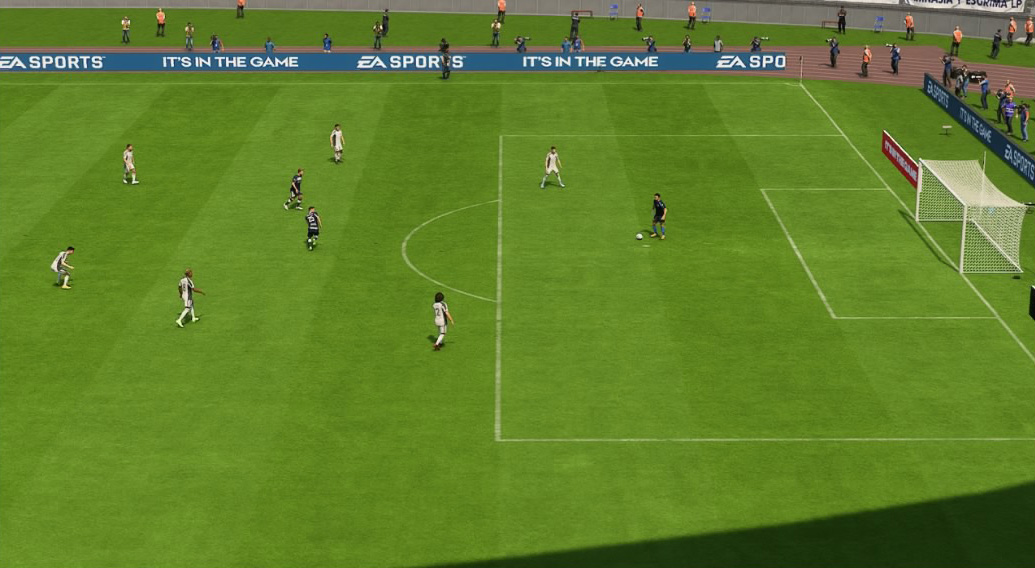
LEGACY
Camera Modes
- UT Competitive Camera: Enabled or Disabled - Applies a consistent camera angle in Ultimate Team matches where supported.
- Single Player Camera: Broadcast, Tele, Tele Broadcast, Co-op, Classic, Dynamic, End to End, Tactical, Pro, and EA SPORTS GameCam.
- Multiplayer Camera: Uses a separate camera setting for local multiplayer matches.
- Player Career Camera: Includes player-focused camera options such as Pro, Tactical, and Tactical Focus.
- Clubs Camera: Choose from standard match cameras, including Broadcast, Tele, Tele Broadcast, Co-op, Classic, Dynamic, End to End, Tactical, Pro, and EA SPORTS GameCam.
- Rush Camera: Includes Rush-specific views designed for fast-paced small-sided matches.
- Be-A-Goalkeeper Camera: Pro, Broadcast, Tele Broadcast, Dynamic, and End to End camera options for goalkeeper gameplay.
- Power Shot Zoom: Turns the cinematic zoom effect for Power Shots on or off.
Recommended Camera Setups
- Competitive & Online: Tele Broadcast with Height between 10–20 and Zoom between 0–10 provides excellent pitch visibility. You can also enable UT Competitive Camera for a consistent online experience.
- Casual Gameplay: Co-op is ideal if you prefer seeing more of the pitch and tracking player movement.
- Player Career: Tactical Focus or Pro Camera delivers a more immersive, player-centric experience.
- Goalkeeper Career: Pro Camera offers the best visibility and control when playing as a goalkeeper.
- Rush: Rush Broadcast provides the clearest overview for fast-paced small-sided matches.
Custom Camera Settings
- Camera Preset: Default or Custom.
- Height: 0–20 – Adjusts how high the camera sits above the pitch.
- Zoom: 0–20 – Controls how close the camera is to the action.
- Far Side Focus: 0–10 – Determines how much the camera follows play on the far side of the pitch.
- Ball Tracking Speed: 0–10 – Changes how quickly the camera follows the ball.
- Penalty Area Zoom: 0–10 – Adds additional zoom during attacks inside the penalty area.
- Pro Camera Zoom: 0–20 – Camera zoom used with the Pro Camera.
- Pro Camera Speed: 0–20 – Controls camera movement speed in Pro Camera mode.
- Pro Camera Swing: 0–20 – Adjusts the amount of side-to-side camera movement.
- Power Shot Zoom: On or Off – Enables or disables the cinematic Power Shot effect.
Camera Tips
- Increase Height if you want to see more of the pitch and spot attacking runs earlier.
- Reduce Zoom for better tactical awareness and wider visibility.
- Add a small amount of Penalty Area Zoom if you prefer a closer view while finishing chances.
- If Pro Camera feels too dynamic, reduce the Camera Swing and Camera Speed settings.
- For consistent online gameplay across different stadiums, enable UT Competitive Camera.
FAQ
What is the best camera in FC 27?
Most competitive players prefer Tele Broadcast because it offers an excellent balance between pitch visibility and player detail. Many Ultimate Team players also enable UT Competitive Camera for a consistent online experience.
Can I use different cameras for different game modes?
Yes. FC 27 allows separate camera settings for several game modes, including Ultimate Team, Clubs, Player Career, Rush, and local multiplayer.
Do custom camera settings affect online gameplay?
Yes, although some competitive online modes may enforce specific camera rules to ensure fairness and consistency.
Does Power Shot Zoom affect gameplay?
No. Power Shot Zoom is purely a visual effect and does not change gameplay mechanics or player input timing.
Have more questions? Leave a comment below or visit our FC 27 FAQ for additional guides, tips, and answers.
Comments
No comments yet. Be the first to share your thoughts!