Looking to record FIFA gameplay? Let’s show you how.
FIFA video games have been around for a while now, and they continue to be popular among gamers. FIFA is released each year by EA, which is why it is the most popular version of football games going around. Usually, these updates see new players, kits, clubs, etc.
That’s why users play this FIFA video game on PCs and Consoles alike. There are tournaments, streams, and YouTube videos filled with FIFA matches. But, to do that, a user needs to be able to record these games on each platform.
So, how do you record your gameplay on various devices like PS, PS4/5, or Xbox? In this article, we’ll discuss multiple ways of recording the FIFA video game for each platform. So, let’s get started.
How to Record FIFA on PC
The average number of players for FIFA every month on PC is around 59,000. These are very high numbers, considering it’s a game played mostly on consoles, particularly PS. Now, if you’re one of the people who play it on PC, then you know the importance of recording it at a high frame rate.
Now, there are various options that you might find, such as the recording options provided by Windows or any unknown tool on the Microsoft store. However, these tools will not capture your game in the highest quality.
That’s why you’re going to need a good quality third-party tool like EaseUS RecExperts. Why this particular tool? Because it’s known to capture and record games at high quality while retaining the resolution and frame rate. Here’s why it’s the best option for FIFA gamers on PC:
- Ability to record 2D/3D gameplay at high FPS without lags or stutters;
- Allows you to edit and snip videos with an inbuilt editor and player;
- Ability to use your mic and webcam during the gameplay recording;
- Record the full screen or a specific region of your computer;
- Schedule recording on your PC, including the option to edit while recording.
These factors alone should be more than enough to consider this tool as the primary option for recording video games. Now, how exactly do you go about using this tool? Here are the steps:
- Run FIFA on your PC
- Start EaseUS RecExperts
- Click on Game Mode (A) then Select Game (B)

- Under the opened Game Window Select FIFA (image has GOW running)

- Continue playing the game
- Check the recording bar
- Press stop whenever you’re done playing

- Done
And this is how you can record your FIFA gameplay on PC quite easily. Just ensure that you follow these steps properly, and select each option as indicated in the steps.
How to Record FIFA on Xbox
Recording FIFA on Xbox depends on two things. The first is whether you wish to record your entire gameplay or stream it. The other option is to record specific moments, like what exactly you did, a goal, or a moment in the game during the past 1-2 minutes.
To make it easier for you. We’re going to explore both recording methods, starting with the shorter one first:
- When playing a game, press the Xbox Guide Button on your Xbox Controller

- Wait till the recording options pop up
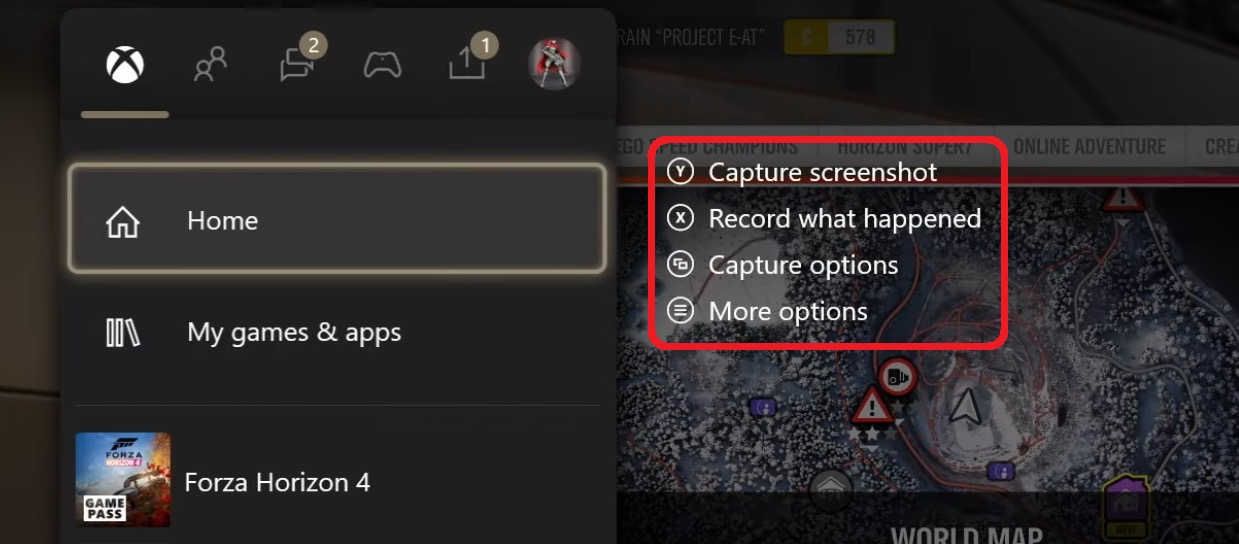
- Navigate to and press the Capture Options
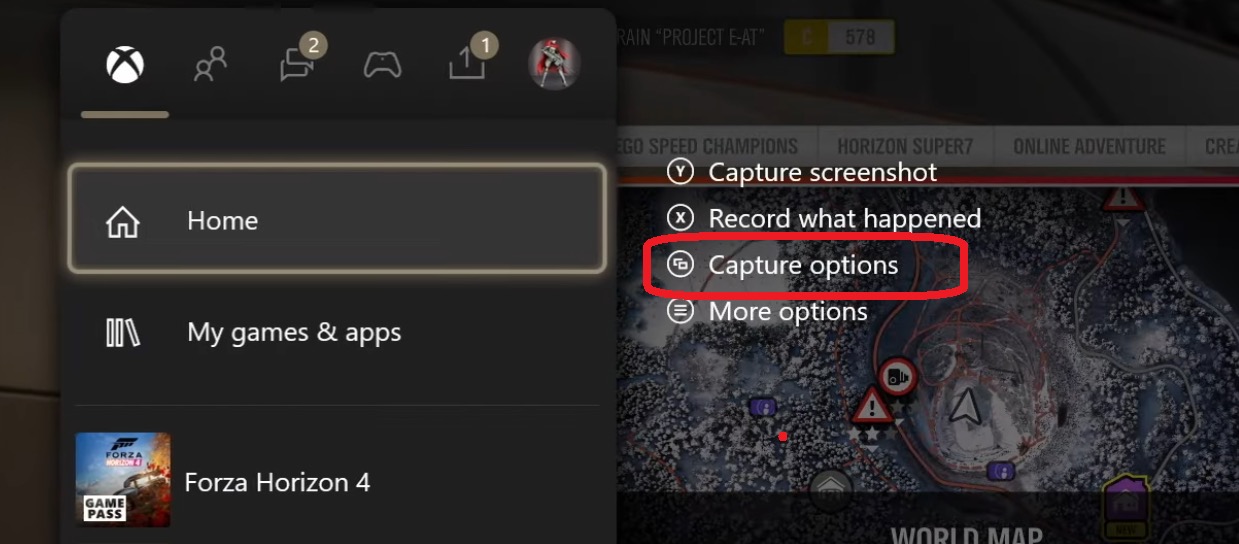
- Once in, click on the length of your video (to what happened recently)
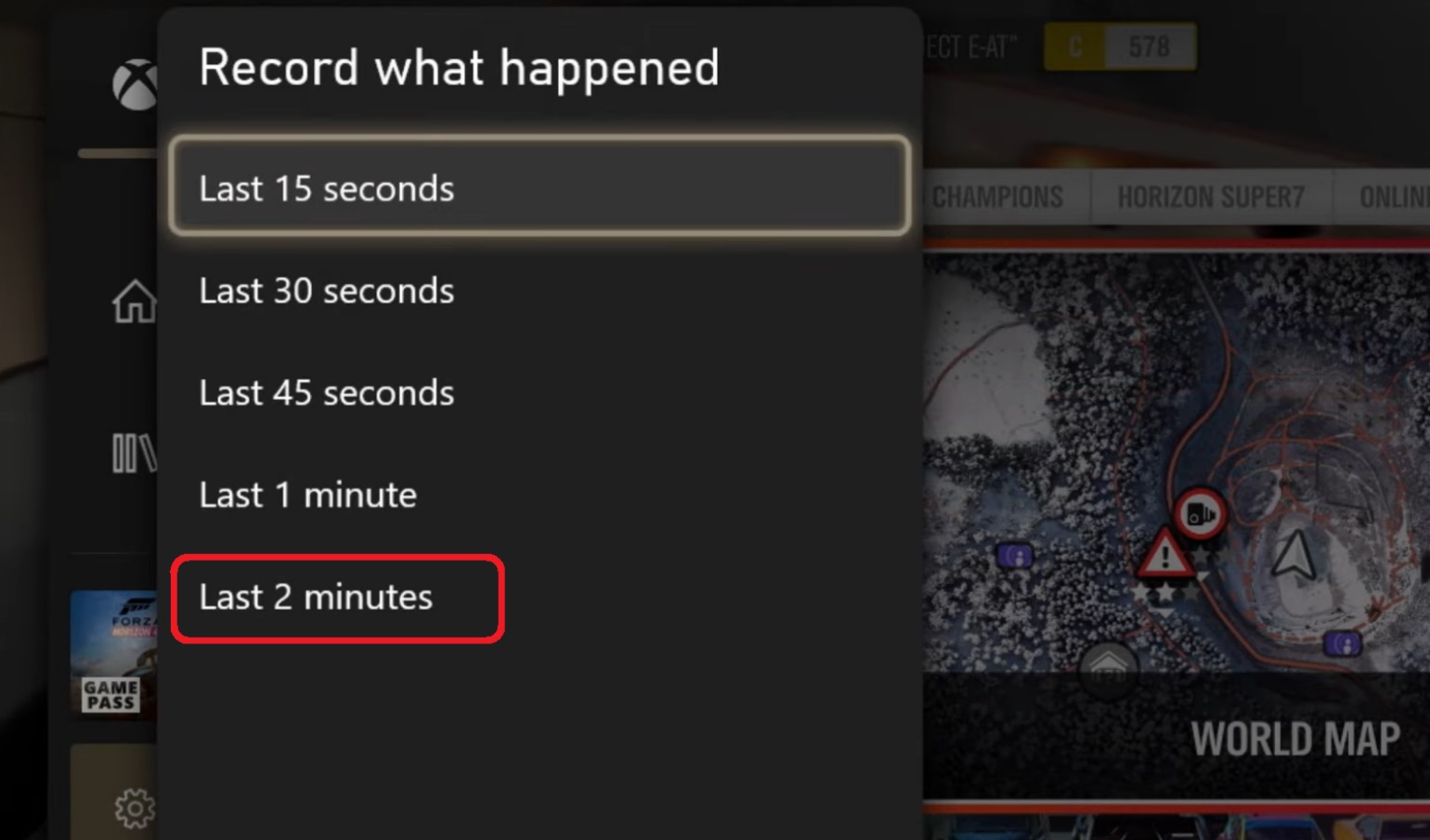
- Pick the Last 2 Minutes option (or whichever suits you)
- Head back, then press the Xbox Guide Button once more
- Navigate to the last option in the top bar, and click on Recent Captures
- From there, you can pick and share the clip you recorded recently
- Done
Now, this is the way to do a short recording of your gameplay. In order to do a longer recording of your gameplay, you will need an NTFS drive as your external backup. So, once you have an external drive connected, here’s what you’ll do:
- Press the Guide button on your Xbox controller
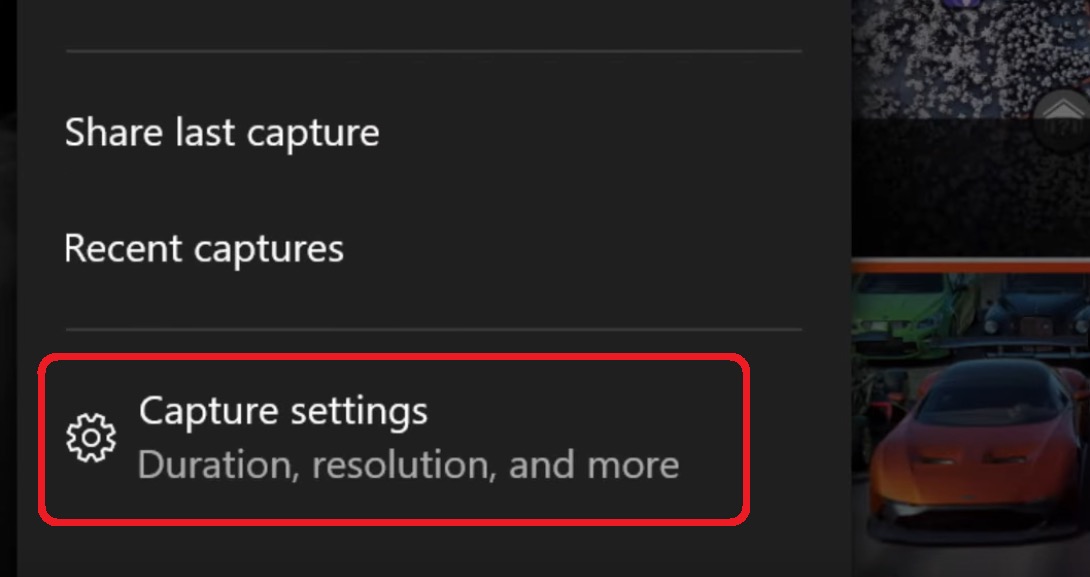
- Head into Capture Settings at the bottom
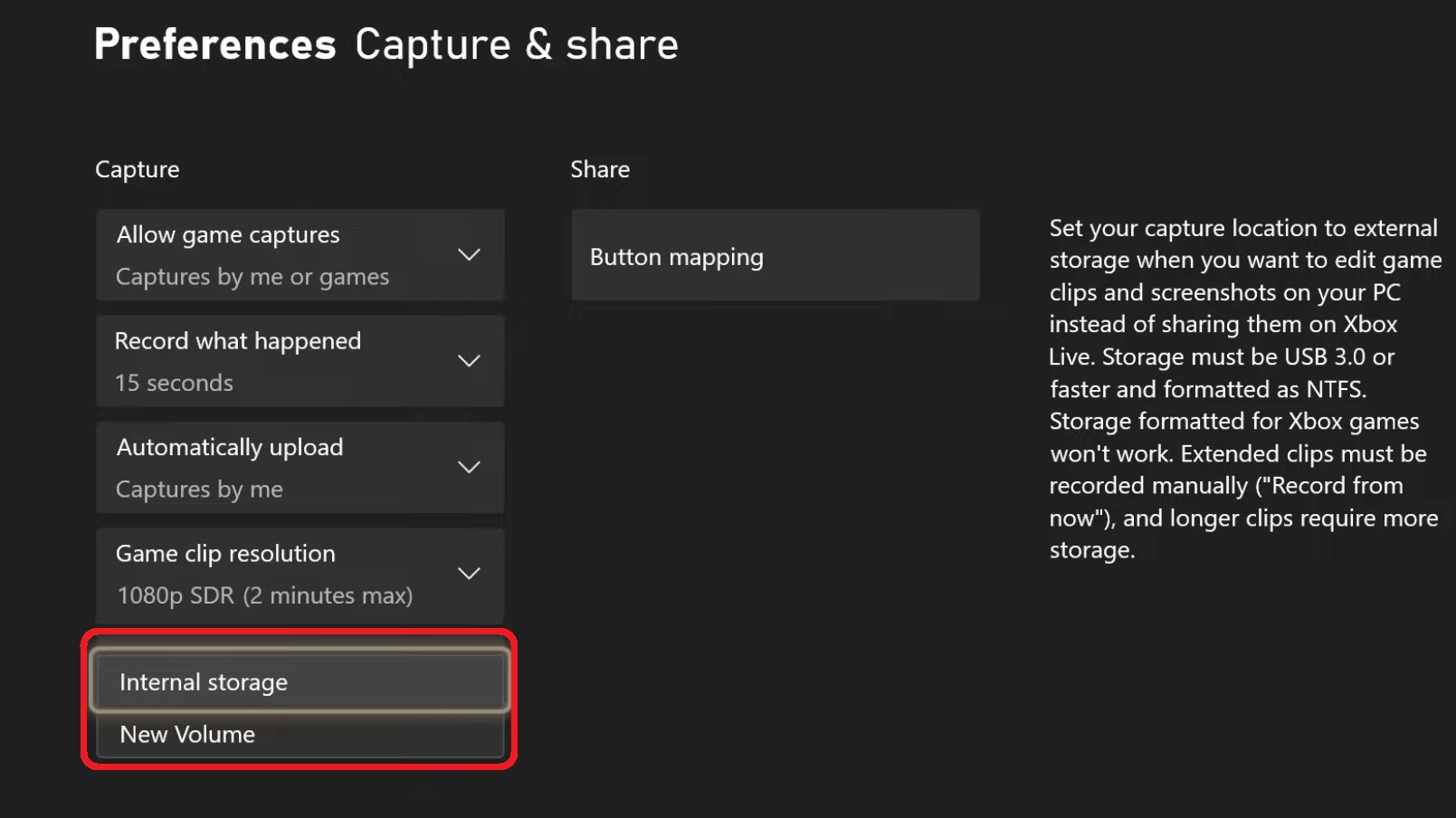
- At the bottom of Capture settings, switch from Internal Storage to New Volume (external device)
- Now, head back to the Xbox menu
- Start FIFA game
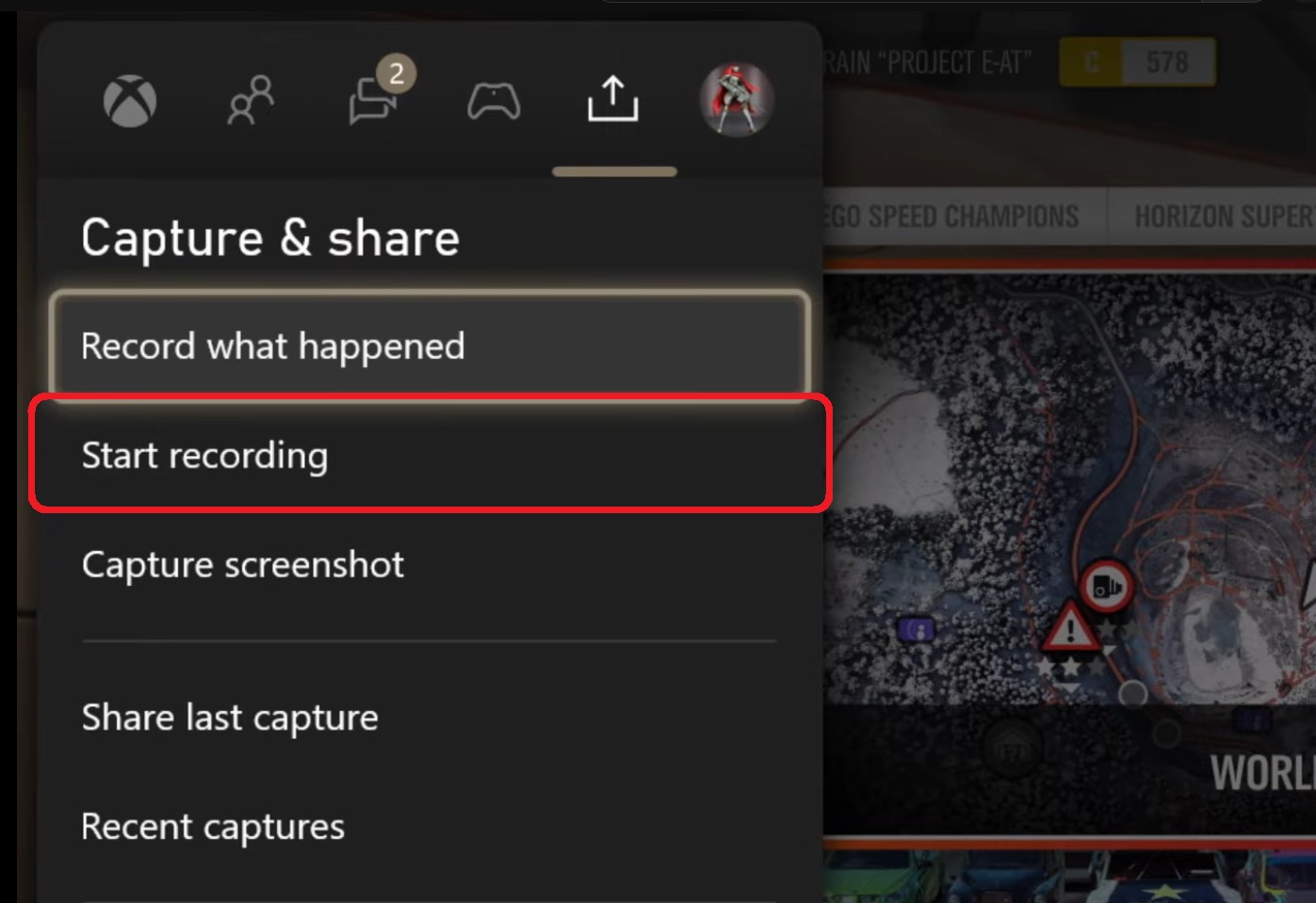
- Then press the Xbox Guide button once more
- This time, press Start Recording
- Done
This recording will last up to 60 minutes. Once done, you can follow the same steps mentioned earlier to find the recorded file and use it on your PC to edit.
How to Record FIFA on PS4
Much like the Xbox options above, PS4 also allows you to capture videos in two methods. However, instead of 2 minutes, the default mode allows you to save from 30 seconds to 60 minutes of the most recent gameplay. Or, you can record manually and capture as much gameplay as you like.
So, keeping the same tradition as the Xbox method, let’s explore both PS4 methods of recording. The first is the shorter one:
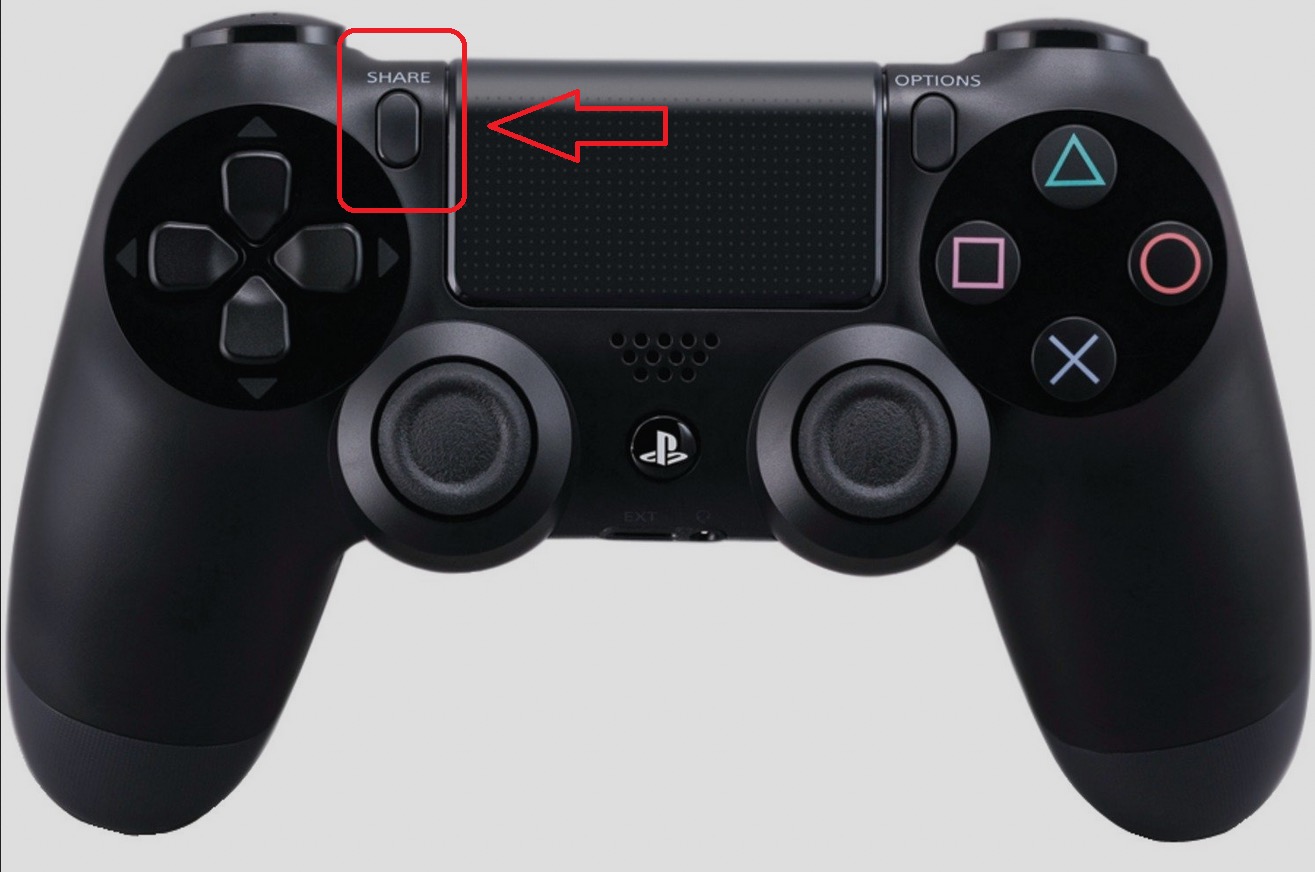
- Press the Share button on your PS4 controller
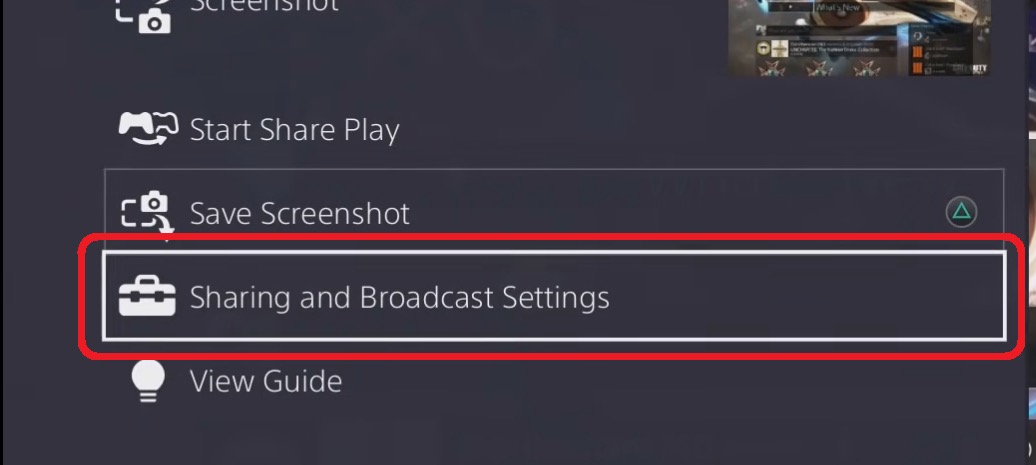
- Scroll down and select Sharing and Broadcast Settings
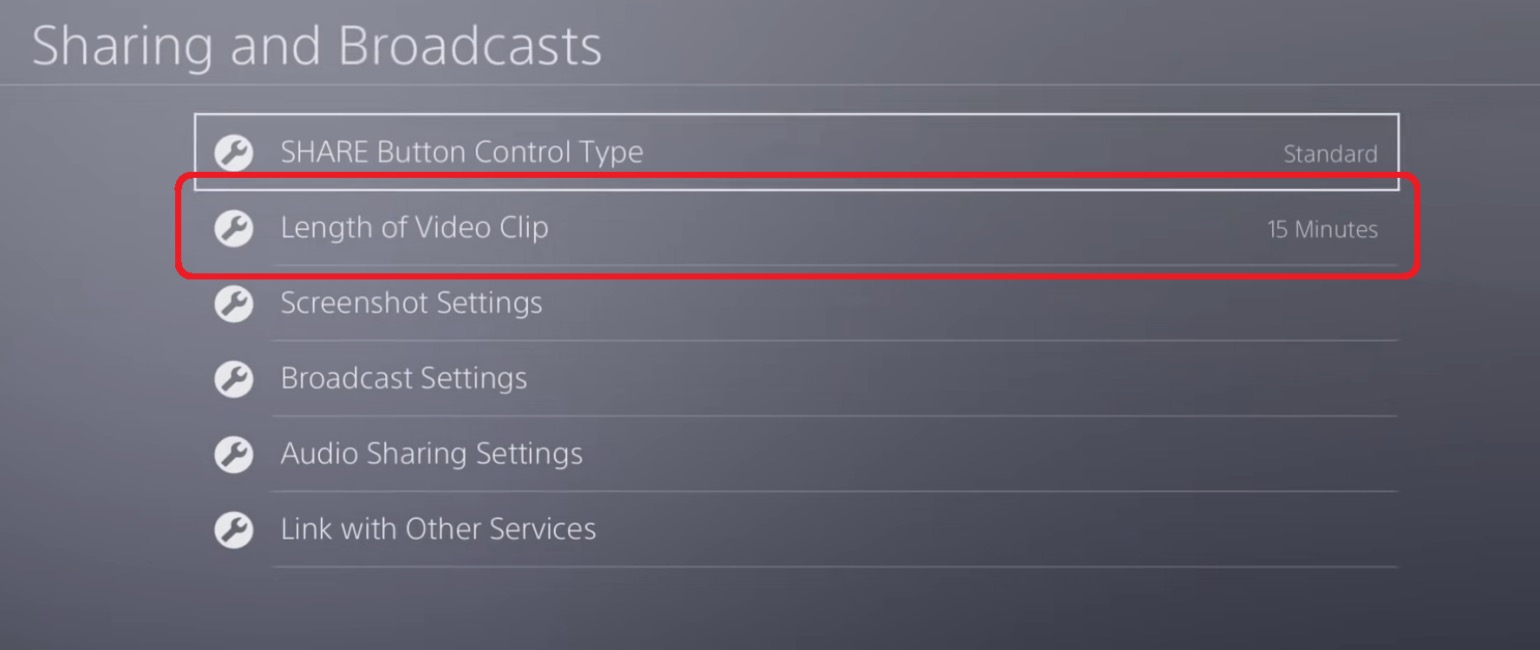
- Click on Length of Video Clip option
- Done
Now, this will allow you to record 60 minutes of FIFA gameplay. But how do you edit or find the recording? Before that, let’s talk about recording your gameplay manually:
- Start your FIFA gameplay
- Double-tap the Share button on your PS4 controller
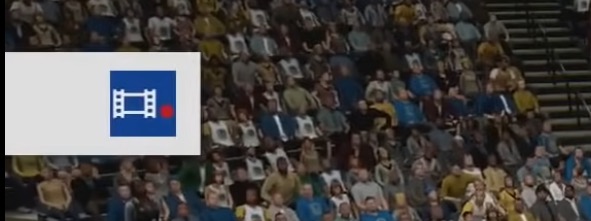
- Wait for the record sign to pop up in the corner
- Continue playing your game
- To stop recording, double-tap the Share button on your PS4 controller again
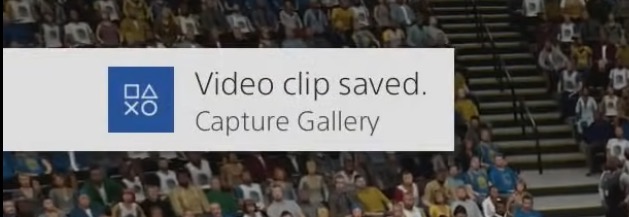
- Wait for confirmation
- Done
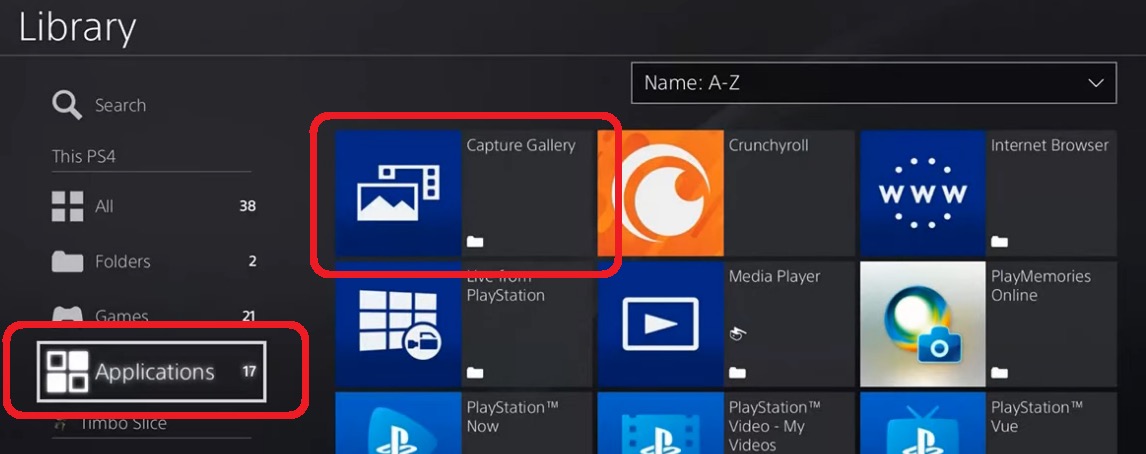
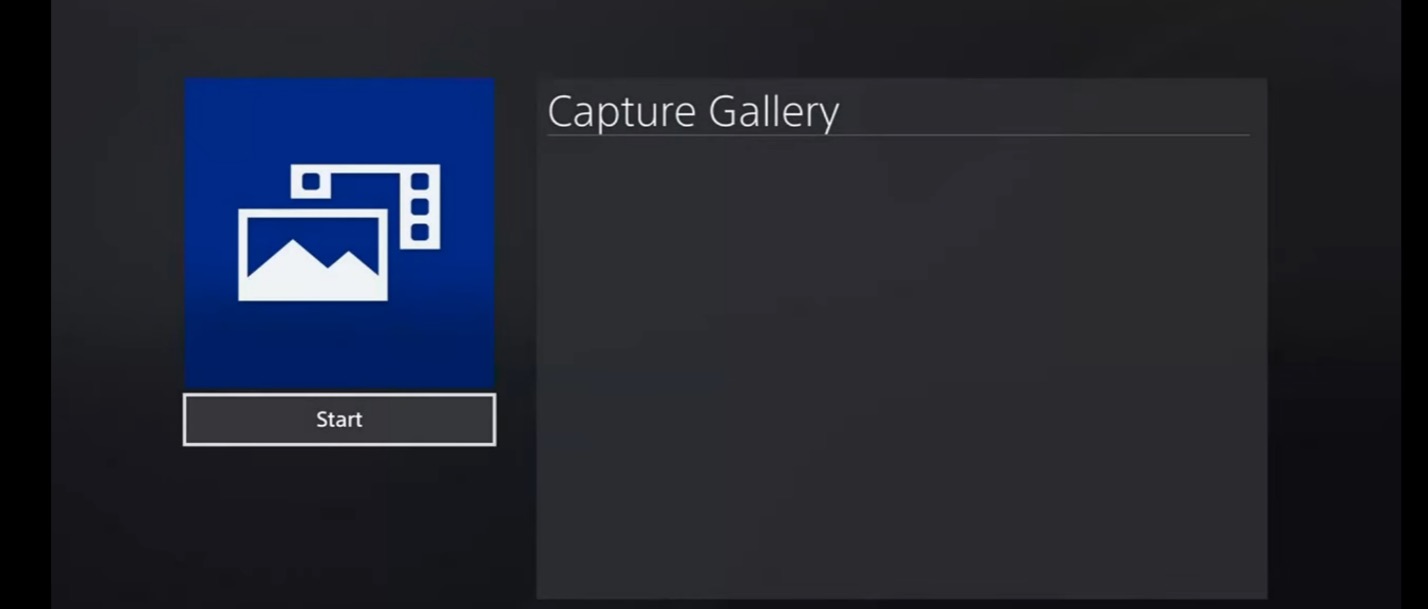
Now, once either type of clip is recorded, you’ll find them in the PS4 Capture Gallery. Here’s how to find it:
- In the main menu, scroll all the way to the side until you find Library
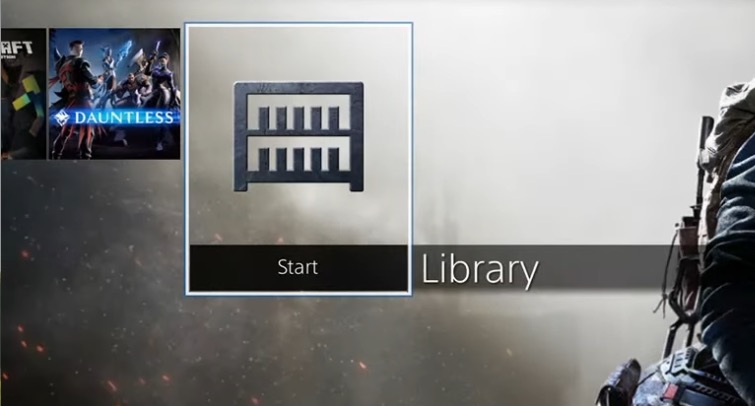
- Scroll down to Applications
- Then click on the first app called Capture Gallery
- Browse the capture gallery to find your saved clips/recordings
- Done
And that’s how you record and find your gameplay on PS4. Once done, you can copy these clips to an external drive or USB to copy them on your computer. From there, you can edit them easily.
Final Words
These are the three methods of recording your FIFA gameplay on each of the platforms. While PC is the easiest, Xbox and PS4 require you to configure the right settings. Once done, you will find it easy to record your gameplay on them manually.
Comments
No comments yet. Be the first to share your thoughts!